Filtering Alarms (Alarm Filter Panel)
Avaya Fault & Performance Manager
Filtering Alarms (Alarm Filter Panel)The Alarm Filter Panel gives you detailed control of alarm collection and processing. You specify a set of parameters to filter out a selected set of alarms. Additional parameters define how often alarm collection occurs, and what actions to take when an alarm is received.
Use this panel to View, Add, Modify, and Delete parameters for alarm filtering.
Default Alarm/Error Panel
The default Alarm/Error panel appears under Administration Root > Default Parameters > Alarms/Errors.
The default alarm filters apply to all systems except those where custom alarm filters have been defined.
Custom Alarm/Error Panel
The custom Alarm/Error panel appears under Administration Root > Voice System Parameters > [system name] > Alarms/Errors.
For each voice system, collection can be on or off. Each voice system can use either the default alarm filter parameter values, or custom alarm filter parameters.
Defined alarm filters are displayed as a scrolling list:
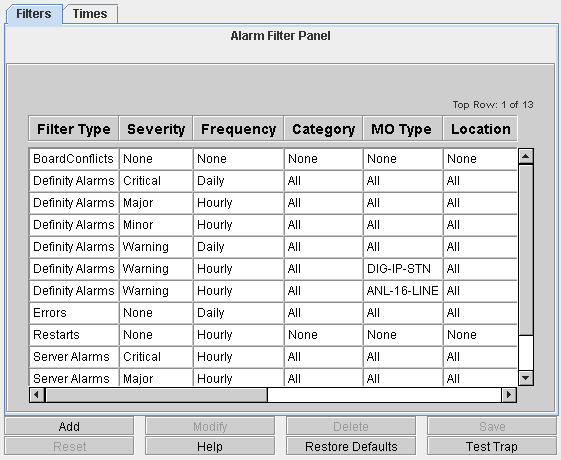
Selecting an alarm filter (or clicking Add) opens the selected filter (or a new filter) in the Alarm Filter Configurator.
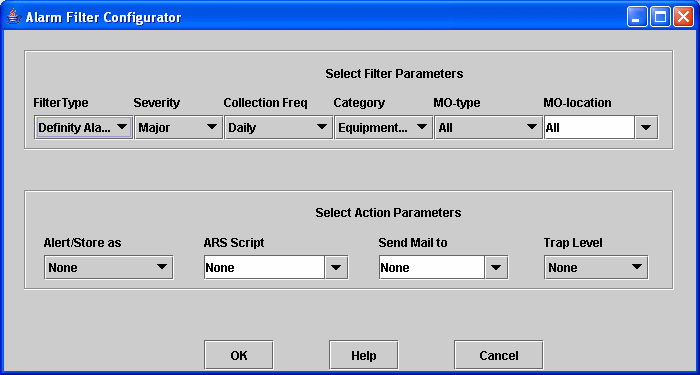
Filter Parameters: These parameters are shown in each row of the Alarm Filters panel, and in the upper section of the Alarm Filter Configurator used to define or edit alarm filters.
Filter Type: Select the type of alarm to be filtered:
Definity Alarms: Alarms collected from the Communication Managers and maintenance objects in the Communication Managers.
 Note:
Note:
Definity Alarms now includes the previous filter type: Traps. Selection of Definity Alarms now provides both filtering on FPM and setting filters on the platform. Traps is no longer available.
Restart Alarms: Restarts of the Communication Managers.
Note:
Restart Alarms now includes the previous filter type: Restarts. Selection of Restart Alarms now provides both filtering on FPM and setting filters on the platform. Restarts is no longer available.
Server Alarms: Alarms collected from the Linux servers that hosts the Communication Managers.
Note:
Server Alarms now includes the previous filter type: Platform. Selection of Server Alarms now provides both filtering on FPM and setting filters on the platform. Platform is no longer available.
Errors: Errors collected from the Communication Managers.
Board Conflicts: Board conflicts detected in the Communication Managers (detected as conflicts between what is administered and what is actually plugged in).
Severity: Select the severity of alarm to be filtered:
Major
Minor
Warning (custom filters only)
Critical
Resolved (custom filters only)
All
None (this field does not apply to this filter)
Notes:
To receive traps for Warning and Resolved alarms, the Communication Manager must be release 3.0 or above, and Use Custom Values must be selected.
The filters for warning and resolved alarms are sent to the Communication Manager g3Agent using SNMP. The agent must be properly setup and the SNMP write community strings must be provided when requested.
There are a huge number of warning alarms. It is counterproductive to turn on all warning alarms on all maintenance objects. The intent of warning severity is to allow notification of events of particular interest on a limited number of crucial Maintenance Objects.
Collection Frequency: select the frequency of alarm filtering:
None (this field does not apply to this filter)
Daily
Hourly
Note:
This field is only used for Filter Type values Definity Alarms, Server Alarms, and Errors — those types that are collected on a schedule from the Communication Manager. This field does not apply to Board Conflicts or Restart Alarms.
Category: Categories are groups of Maintenance Object types. (For example, when the Filter Type is Definity Alarms, the default Equipment-Type category expands to the MO group {MediaGateways, Cabinets, Boards, Ports, Extensions, and Trunks}. When a Category is chosen, the MO-Type contains the corresponding expanded list of Maintenance Objects.
This field is only used for Filter Type values Definity Alarms, Server Alarms, Platform, Errors and Traps. This field does not apply to Board Conflicts, and Restarts.
MO-Type: The Maintenance Object type can be selected from an appropriate list of Maintenance Objects within each Category. If a specific Maintenance Object is chosen, the filter applies only to Maintenance Objects of that type. If the value All is chosen, the filter applies to all Maintenance Objects in the Category.
MO-Location: The default All applies the filter to all locations for the chosen MO-Type. If a location is specified, the filter applies only to that location.
Note:
When the MO-Type is specified as Error, the MO-Location field contains the Error Code.
Action Parameters: These parameters are shown in each row of the Alarm Filters panel, and in the lower section of the Alarm Filter Configurator used to define or edit alarm filters.
Alert/Store as: Select the level of severity at which to alert and store.
Store only: The alarm/trap information is stored in the database, but not displayed.
Critical, Major, Minor, Warning: The alarm/trap information is stored in the database and displayed with the selected severity.
None: The alarm/trap information is neither stored nor displayed.
ARS Script: The fully qualified name of any applicable ARS Script. The default is None.
Send Mail To: The address to which to send email notification. The default is None.
Trap Level: select the level of severity at which to set an SNMP trap for another monitoring system.
None: Do not forward/generate a trap for this alarm/trap.
Critical, Major, Minor, Warning: Generate/forward a trap to the HP/OV NMS system. The default is Major.
The default Alarm/Error panel appears under Administration Root > Default Parameters > Alarms/Errors.
The default alarm filters apply to all systems except those where custom alarm filters have been defined.
The custom Alarm/Error panel appears under Administration Root > Voice System Parameters > [system name] > Alarms/Errors.
For each voice system, collection can be on or off. Each voice system can use either the default alarm filter parameter values, or custom alarm filter parameters.
When the alarm filter panel is displayed, you can add, change, and delete filters using the buttons at the bottom of the panel:
Add: Click Add to open the Alarm Filter Configurator with a blank form for a new filter.
Modify: Select an existing filter by clicking on its row. Then click Modify to open the Alarm Filter Configurator with the selected filter parameters filled in for editing.
Delete: Select one or more existing filters by clicking on their rows. Then click Delete to delete the selected filters. Multiple filters can be selected by clicking the first filter and then holding down the <shift> key and clicking the last filter.
Save: The Save button becomes active when any changes are mode to the panel. Click the Save button to save the changes to the database. Attempting to close the panel without saving requires a confirm dialog to save or discard the changes.
Reset: The Reset button becomes active when any changes are mode to the panel. Click the Reset button to discards any changes to the panel and reloads the panel from the database.
The Test Trap button at the bottom of the Alarm Filter Panel generates a test trap.
At the default level the Test Trap button is always enabled. FPM determines which voice systems have CM4.0 (load 730.0 and above) and sets those systems to generate a trap.
At the voice system level clicking the Test Trap button generates a trap for that voice system. The Test Trap button is enabled only if the voice system has CM4.0 (load 730.0 and above).
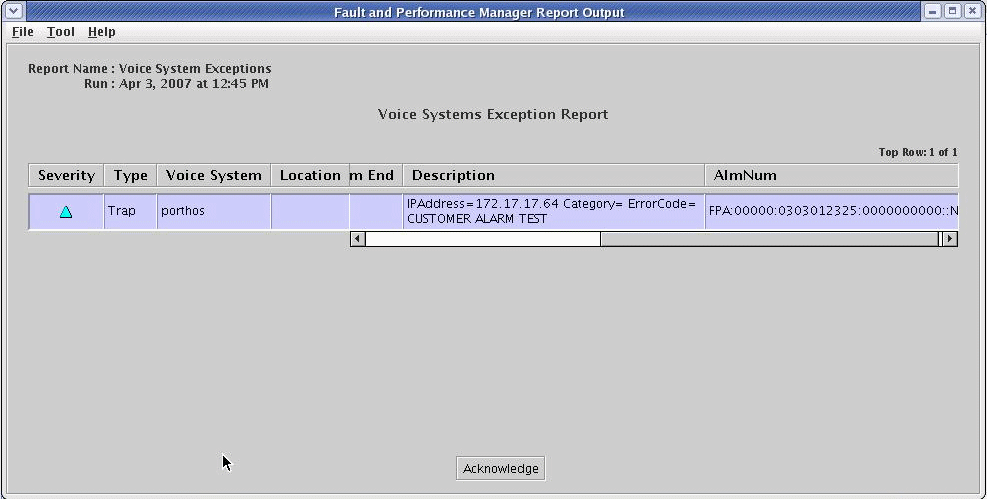
If an appropriate alarm filter (Type = Trap, Severity = Warning or All) exists, the resulting traps display in the Voice System Exception Report. The Description indicates that this is a customer alarm test.